IPTV setup on Android TV takes under 15 minutes. Install TiviMate from Google Play, enter your M3U URL or Xtream Codes credentials, load your EPG URL, enable hardware decoding, and start streaming. Android TV’s Google Play Store access makes it the most flexible IPTV platform available.
Why Android TV Is the Best Platform for IPTV
IPTV setup on Android TV is genuinely easier than on any other streaming platform — and the experience after setup is better too.
The reason comes down to one thing: the Google Play Store.
Firestick users have to sideload IPTV apps through workarounds. Samsung and LG Smart TV owners are limited to a handful of native apps. But Android TV gives you full Play Store access — meaning TiviMate, IPTV Smarters Pro, OTT Navigator, and every other major IPTV player installs directly, like any regular app.
No developer mode. No sideloading. No Downloader app. Just search, install, and watch.
Beyond installation convenience, Android TV devices range from affordable budget boxes to the premium Nvidia Shield TV Pro — which handles 8K IPTV streams with AI upscaling and runs ProPackIPTV’s 25,000+ channel lineup without breaking a sweat.
What You Need Before Starting
An active IPTV subscription with credentials
After subscribing to ProPackIPTV, your credentials arrive by email instantly — either an M3U URL or Xtream Codes (server URL + username + password). Have your phone or email accessible during setup so you can copy-paste rather than type credentials manually.
Not subscribed yet? ProPackIPTV offers a 24-hour free trial — full access, no payment commitment required:
A stable internet connection
| Stream Quality | Minimum Speed | Ideal Speed |
| HD (1080p) | 10 Mbps | 15 Mbps |
| 4K Ultra HD | 25 Mbps | 35 Mbps |
| 8K | 50 Mbps | 75 Mbps |
For live sports specifically — wired ethernet beats Wi-Fi every time. Even a fast Wi-Fi connection introduces packet loss that causes buffering during peak moments. Nvidia Shield and most dedicated Android boxes have built-in ethernet ports. Use them.
Your Google account signed in
Required for Google Play Store access on Android TV.
Step 1 — Set Up Your Android TV Device
For standalone Android TV boxes (Nvidia Shield, Xiaomi Mi Box S, Mecool KM2 Plus):
- Connect to your TV via HDMI
- Connect ethernet cable to your router (strongly recommended)
- Power on — complete Android TV’s initial setup wizard
- Sign in to your Google account when prompted
- Complete any available software updates before proceeding
For Sony Smart TVs (Android TV / Google TV built-in):
Your TV already has Android TV — no additional hardware needed. Navigate to Settings → Network → confirm your TV is connected via ethernet or Wi-Fi. For best results, use the ethernet port on the back of the TV.
For Chromecast with Google TV:
Same Google account setup process applies. Chromecast with Google TV supports TiviMate and the full range of IPTV apps.
Step 2 — Install Your IPTV Player App
This is where IPTV setup on Android TV has a clear advantage. Open Google Play Store and install your preferred player directly.
Option 1: TiviMate — Recommended for Most Users
TiviMate is the gold standard IPTV player for Android TV. Its EPG grid looks exactly like a traditional cable TV guide — perfect for browsing ProPackIPTV’s massive channel lineup and checking live sports schedules at a glance.
Installation: 1. Open Google Play Store on your Android TV 2. Search “TiviMate IPTV Player” 3. Install and open
TiviMate is free with an optional Premium upgrade ($4.99/year) that adds multi-screen viewing and recording — well worth it for sports fans.
Option 2: IPTV Smarters Pro — Best for Beginners
Simpler interface, easier initial setup. Also available directly on Google Play. Better choice if you’re new to IPTV and want a less technical starting point.
Option 3: OTT Navigator — Best VOD Browsing
Feature-rich app with excellent EPG support and advanced VOD organization. Good choice if you use ProPackIPTV’s 120,000+ VOD library heavily.
For detailed app comparisons, see our Best IPTV Apps & Players guide.
Step 3 — Add Your IPTV Subscription
TiviMate Setup with Xtream Codes (Recommended)
Xtream Codes is the better connection method — it enables full VOD browsing, catch-up TV, and series navigation directly within TiviMate.
- Open TiviMate → tap Add Playlist
- Select Xtream Codes
- Enter your ProPackIPTV details:
- Server URL — your ProPackIPTV server address
- Username — your account username
- Password — your account password
- Tap Next → name your playlist → Add
TiviMate connects to ProPackIPTV’s servers and loads your full channel list. With 25,000+ channels and 120,000+ VOD titles, the initial load takes 2–4 minutes. Don’t close the app during this process.
TiviMate Setup with M3U URL
- Open TiviMate → Add Playlist → M3U Playlist
- Select Add via URL
- Paste your ProPackIPTV M3U URL
- Tap Next → name it → Add
IPTV Smarters Setup
- Open IPTV Smarters → Add New User
- Select Login with Xtream Codes API
- Enter server URL, username, password
- Tap Add User
Your channels, VOD library, and catch-up content organize into separate tabs automatically after authentication.
Step 4 — Configure EPG (Electronic Program Guide)
Without EPG, your channels work but you’re flying blind — no way to see what’s currently airing or what’s on next. ProPackIPTV provides an EPG URL with your subscription credentials.
Setting up EPG in TiviMate:
- Settings → Playlists → select your ProPackIPTV playlist
- Tap EPG → Add EPG source
- Enter your ProPackIPTV EPG URL
- Tap Update EPG
Wait 3–5 minutes for the first load. After loading, you’ll see full program schedule information alongside every channel — current show, next show, times, descriptions.
Critical setting: Go to TiviMate Settings → General → Timezone → set to your local timezone. Without this, EPG times display incorrectly — particularly confusing when checking live sports kickoff times.
ProPackIPTV provides EPG data for 80%+ of channels. Sports, news, and major entertainment channels all show full program schedules.
Step 5 — Optimize Performance Settings
Three settings changes that make a material difference to your streaming experience:
Enable Hardware Decoding
This is the most important performance setting. Hardware decoding uses your device’s dedicated video processor instead of the main CPU — dramatically smoother 4K and 8K playback, less device heat, and fewer dropped frames during fast sports action.
TiviMate: Settings → Player → Hardware Decoding → Enable IPTV Smarters: Settings → Hardware Acceleration → On
Set Stream Quality to Auto (Adaptive Bitrate)
TiviMate: Settings → Player → Default stream quality → Auto
Adaptive streaming automatically lowers quality during temporary connection dips rather than buffering. Particularly valuable during live sports when server load peaks.
Match Display Resolution to Your TV
Settings → Display & Sound → Display → Resolution → 4K (2160p) if your TV supports it.
This ensures ProPackIPTV’s 4K sports streams actually display at 4K rather than being downscaled.
Step 6 — Device-Specific Tips
Nvidia Shield TV Pro
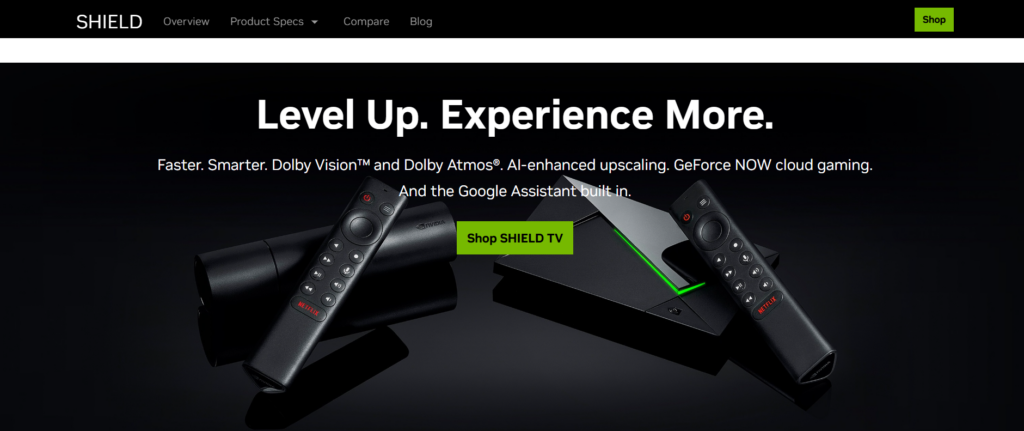
The Shield Pro is the best Android TV device for IPTV — its processor handles 8K streams, the built-in ethernet port eliminates Wi-Fi variables, and TiviMate runs flawlessly.
Shield-specific tip: Enable AI upscaling in Settings → Display → AI Upscaling → On. This improves picture quality on SD and lower-HD channels — useful when watching older content from ProPackIPTV’s VOD library.
According to NVIDIA’s official documentation, the Shield TV Pro supports Dolby Vision, HDR10, and Dolby Atmos — all of which enhance ProPackIPTV’s premium stream quality when available.
Disable automatic updates during sports events: Settings → Device Preferences → About → System update → Manual updates only. Prevents unexpected reboots at inconvenient moments.
Xiaomi Mi Box S
Great budget option but no built-in ethernet port. Use 5GHz Wi-Fi (not 2.4GHz) for best performance. Consider a USB-C ethernet adapter if buffering occurs during major live sports events.
Mi Box tip: Settings → More Settings → Device Preferences → Developer Options → Turn off automatic system updates. Same reasoning as Shield — prevents mid-match reboots.
Sony Android TV / Google TV
Full Play Store access means TiviMate installs natively — no extra device needed.
Sony tip: Settings → Apps → TiviMate → Permissions → Enable all permissions including storage and network access. Without full permissions, playlist loading can fail silently.
For newer Sony Google TV models, access Play Store from the Apps tab on the home screen rather than a dedicated store icon.
Mecool KM2 Plus
Certified Android TV with Netflix 4K support and built-in ethernet. Mid-range sweet spot between Mi Box budget and Shield premium.
Mecool tip: The KM2 Plus runs certified Android TV — meaning it gets Google Play Security updates. Keep it current for best app compatibility.
Step 7 — Test Your Setup
Before watching a live sports event, run a quick verification test:
Stream quality test: Find a 4K sports channel in ProPackIPTV’s lineup. Watch 5 continuous minutes. Any buffering? Any pixelation during fast movement?
EPG accuracy test: Check that program times match what’s actually airing. If times are off by hours, adjust your timezone setting.
Channel switching test: Switch between 10 channels in quick succession. Loading should take 2–4 seconds per channel on a good connection.
VOD test: Search for a specific movie in ProPackIPTV’s 120,000+ library. Confirm it loads and plays at HD quality.
Multi-device test (if applicable): If you have a 2 or 3-device plan, connect a second device simultaneously and confirm both streams work without conflict.
If you encounter issues during testing, see the troubleshooting section below or watch our setup walkthroughs on the Streaming Fix Zone YouTube channel — which covers IPTV setup across all major devices.
Common IPTV Setup Problems on Android TV & Quick Fixes
Channels not loading after adding playlist Check credentials for typos. Ensure ProPackIPTV subscription is active. Force-close TiviMate and reopen. Clear app cache if the problem persists (Settings → Apps → TiviMate → Clear Cache).
4K stream playing in HD quality Verify display resolution in device settings is set to 4K. Enable hardware decoding. Confirm internet speed exceeds 25 Mbps with a speed test at fast.com
Google Play won’t find TiviMate Some regions have Play Store availability restrictions. Install via browser: navigate to tivimate.com on your Android TV’s browser and download the APK directly.
App crashes when loading 25,000+ channel playlist Large playlists are data-intensive on initial load. Allow the full load to complete before browsing — typically 3–5 minutes on the first run. Clear cache if crashes persist.
EPG shows wrong times Settings → General → Timezone → set your correct local timezone → force EPG refresh.
Buffering during live sports only This indicates peak-load server pressure. ProPackIPTV’s 100+ server network handles major events well — if buffering persists, try an alternate stream source for the same channel. Also confirm you’re using ethernet rather than Wi-Fi.
If your issue isn’t resolved by the above, contact ProPackIPTV’s 24/7 support directly:
FAQs
1. Does IPTV setup on Android TV require sideloading? No — TiviMate, IPTV Smarters Pro, and all major IPTV players install directly from the Google Play Store on Android TV. No sideloading or developer mode required.
2. Which Android TV device is best for IPTV in 2026? The Nvidia Shield TV Pro is the best performer — handles 8K streams, built-in ethernet, AI upscaling. For budget users, the Xiaomi Mi Box S handles ProPackIPTV’s 4K streams reliably for around $60.
3. Can I use ProPackIPTV on multiple Android TV devices? Yes — ProPackIPTV’s 2-device and 3-device plans support simultaneous streaming on multiple devices. Each connection counts as one stream.
4. Is TiviMate free on Android TV? TiviMate has a fully functional free version. The Premium upgrade ($4.99/year) adds multi-screen viewing, recording, and multiple playlist support — recommended for regular sports viewers.
5. What’s the difference between M3U URL and Xtream Codes for IPTV setup? Both load the same channels from ProPackIPTV. Xtream Codes additionally enables organized VOD browsing and catch-up TV within TiviMate. M3U URL works with any player. Xtream Codes requires a compatible player like TiviMate or IPTV Smarters.
6. My Sony TV has Android TV — do I need a separate Android box? No — Sony’s Android TV / Google TV gives you full Play Store access natively. Install TiviMate directly on your TV and skip the extra hardware.
Conclusion
IPTV setup on Android TV is the most capable IPTV configuration available for home streaming. Google Play Store access, hardware decoding support, and device options at every price point make Android TV the platform of choice for serious IPTV users.
The seven-step process above — from device setup through performance optimization — takes under 15 minutes. The result is a TV guide experience and sports streaming quality that genuinely rivals cable, at a fraction of the price.
Your quick-start checklist:
1. Connect device via ethernet to router
2. Install TiviMate from Google Play
3. Add ProPackIPTV via Xtream Codes
4. Load EPG URL and set timezone
5. Enable hardware decoding
6. Set display to 4K
7. Run test stream and confirm quality
Set Up ProPackIPTV on Android TV Today
ProPackIPTV | 25,000+ Channels | 120,000+ VOD | HD, 4K & 8K Works Perfectly with TiviMate on All Android TV Devices
1. 24-Hour Free Trial — Test on Your Android TV First
2. From $10/Month | No Contract
3. Instant Xtream Codes & M3U Delivery
4. 24/7 Technical Support